Category Archives: Tutorials

Happy Go Round Quilt

Happy-Go-Round-cover

My Happy Go Round Quilt is up on the Moda Bake Shop today! This is one I made for my demo at QuiltCon, and I’m very happy to have it completed. I am in love with Bonnie and Camille’s Happy Go Lucky fabric line so this quilt is going to go at the foot of our bed where I can see it all of the time.

If you want to make this quilt, one tip for you, Buy a Curve Master 1/4″ Presser Foot. It makes curved piecing a breeze and no pinning!

Tutorial: Project Life Layer Masks

Tutorial-layer-masksOne of my goals for March is to FINISH my son’s baby album (which is a Project Life album, using the Baby Edition for Him…it started out as a regular Project Life album but I changed it up completely when the baby editions were released even though I was about 80% complete with the original album. That’s another post entirely.) I’ve only been able to squeeze in a few hours to work on the album in the last few weeks but I’m so close – just a few photos to have printed and some things to cut on the Silhouette Cameo. Since I’m going back and filling in instead of spending hours sorting/processing/finding photos, etc., I’m taking a bit more time with each page than I normally would, experimenting with the digital version of the kit (purchased in addition to the paper version – You can find the digital kits {here}).

I imagine most people are either digital OR paper scrapbookers, but I really like a mix of both. My goal was to add in more elements of the Baby Edition since much of what I originally did used such a variety of papers + the Clementine + Cobalt kits. What I really wanted was a more cohesive album. To achieve that, I’ve added digi elements where I can by using layer masks with the journaling cards from the digi kit.

Tutorial-layer-masks-10

{Note: You need the mask so you can create the frame around the photo. You could just try to crop and resize your photo to fit within the border of the card, but it’s actually easier to create the mask.}

This is how I did it:

1. Open the Project Life digital card that you want to use. I’m trying to fill up some 3×4 slots so I chose a 3×4 card.

Tutorial-layer-masks-01

2. Crop out the outer edges of the card so that you only have the center part left. Make sure your crop lines look pretty even all around the card.

Tutorial-layer-masks-02

3. Save this cropped version as a new file with a new name. (I named mine PL-3x4mask.png)

Tutorial-layer-masks-03

4. Click the undo arrow to restore the original version of the 3×4 card.

5. Open up the cropped image and drag it onto the 3×4 card as a new layer. Make sure the cropped image is the top layer.

6. Open the photo you’d like to use. Drag it onto the 3×4 card as the top layer.

Tutorial-layer-masks-06

7. From the Layers menu, select “Create Clipping Mask.” (or click CTRL+G on a PC) Adjust the size and placement of your photo as desired.

Tutorial-layer-masks-05Tutorial-layer-masks-07

8. Save the file as a jpeg for printing. It’s that simple.

Tutorial-layer-masks-08

I also played around a bit with some of the elements from other cards in the set.

Tutorial-layer-masks-11

Fun, right?  I extracted the “swoosh” element from the card on the top right and added it over the photo with some text. I’m thinking of using that same “swoosh” shape as a cut file for the Silhouette Cameo. I think it would make great week number cards.

Follow my blog with Bloglovin

Tip: Half Square Triangles

Half square triangles, no marking

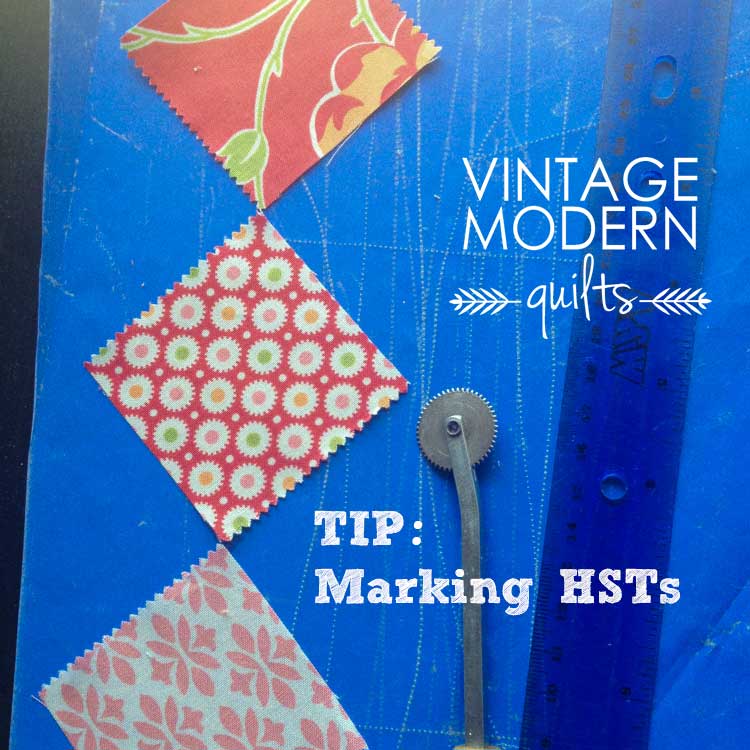
I have a big stack of half square triangles (HSTs) to sew today, and I remembered a trick I saw on Pinterest a few months back. (Here is the original pin.) It doesn’t give the full details for HSTs so I figured out my own method and thought I’d share it here.

1. Find a piece of thin cardboard that is as long as your squares from point to point. I used a piece of Kraft paper.
2. Use your rotary cutter and ruler to trim a 1/2″ wide strip from your cardboard.
3. Use your ruler and a pen to find the center of the strip (a 1/4″ from either edge) and mark a line from end to end.
4. Line your HST squares together and place the strip from point to point. Sew right at the edge of the strip.

NOTE: This method works perfectly if you are making a quilt top that exclusively uses HSTs. But if your quilt top uses HSTs within a block, you need to make a small adjustment to achieve a scant 1/4″ seam. After you mark the center line of your strip, take your ruler and line your 1/4″ mark up exactly with the line…then shift it slightly so that the 1/4″ mark on your ruler is just to the left of the drawn line. Then trim off the excess (which is hardly anything, but that’s your “scant” 1/4-inch).

Tada! Perfect HSTs…no marking. I sewed my entire pile one way, trimmed them apart, and sewed the other side of the strip. Then cut your HSTs in half and press. So much better than marking each piece, right?

Silhouette Cameo for Quilting

My Silhouette Cameo is one of my favorite crafting tools.  If you’ve never heard of the Silhouette Cameo, it is a digital cutting machine. I would describe it as a printer that instead of printing the design, uses a tiny blade to cut the design on paper, fabric, vinyl. etc. It even looks like a printer (it does have a sketch feature that I haven’t used). There is also a smaller (and less expensive) version called the Silhouette Portrait:

I got my Cameo last year and have almost exclusively used it to cut paper – banners, stuff for Project Life albums, etc.

2012-06-06 22.43.59

Moroccan tile film I cut for our bathroom cabinet

2012-10-18 12.13.27

Bat garland in our front window

It’s a really fun tool, and I’ve enjoyed designing graphics and word art for my Project Life albums and to hang on our walls. But I’ve found a new use for it that I had to share. I just started working on an applique-intensive project {Green Tea and Sweet Beans} and the thought of tracing all of the templates made me feel tired. So I did what any crafty gal would do and figured out an easier way. Freezer paper is my preferred method of applique so this may not be helpful to you if you do back-basting or some other method. (Here is a quick run-down of how to do freezer paper applique.)

1. Scan your templates.

2. Open up the scanned image in the Silhouette Studio software and crop out everything except the part you need.

3. Use the trace function to create a cut line for your shape. Ungroup or “release compound path” to clean up any little dashes or marks that don’t belong.

4. Trim some freezer paper to 12×12 (or whatever the size of your cutting mat).

5. Place freezer paper with the shiny side up on the cutting mat. Load in the Silhouette Cameo and cut! Use gentle cut settings. The built=in setting for 65lb pattern paper works okay for the shapes I was cutting, but I’ll go down to a 2 or 3 on the blade setting next time. You do not need to double cut.

Then all you do is apply your templates to your fabric with a hot iron and applique using your preferred method. I finished two blocks for my quilt last week:

Clamshells
Clamshells

Hexagons
Hexagons

My Little Helper
Ben

I’ve already cut the templates and started prepping some more blocks for an upcoming road trip I’m taking. I love this quilt!

QuiltCon Demo for the Moda Bake Shop

Improv Curves with Layer Cakes

I’m sharing this with a simultaneous squee (excitement) and eek (anxiety). My  demo from QuiltCon is live on the internet! I watched it on mute. Anyone who has ever heard their own recorded voice knows why.  I demonstrated the improv curve blocks shown above as well as the new Moda pre-cut, the Honeycomb. I love being able to share my love of quilting and it’s a huge honor to represent Moda Fabrics at a major event like QuiltCon (who am I fooling? It’s a huge honor to represent Moda Fabrics when I’m working from home in my PJs!) I hope you enjoy it!

Tutorial: Creating Quilt Labels

VMQ-how-to-labels

I’ve gotten a lot of questions about my quilt labels. I created the design in Photoshop and then had them printed by Spoonflower. I know that most people don’t have access to Photoshop  but you can still create something custom and stylish using software you probably do have – Microsoft PowerPoint. It’s a surprisingly versatile tool for graphics. This tutorial will show you how to create a simple black and white graphic that you can upload to Spoonflower for printing. (I chose black and white for my quilt labels because it goes with everything and it makes a modern graphic statement.

)My quilt labels for 2013

1. Open up PowerPoint and draw a box the size of the label you want (remember that you’ll need 1/4″ for piecing or needle turn applique).

VMQ-tutorial-labels-01

To specify the exact size of the box, right click on the one you drew, and select “Size and Position.” Enter the dimensions of your label and then hit the “Close” button.

VMQ-tutorial-labels-02

2. This box is your trim guide for the label so set the line and fill style to something light. Once again, right click on the box and this time select “Format Shape.”

For the first option, “Fill,” select None. For the second option, “Line Color,” choose one of the lighter gray tones from the drop-down menu.

VMQ-tutorial-labels-03

For the third option, “Line Style,” set your options to your preference. Mine are shown below:

VMQ-tutorial-labels-04

3. Now click on the box you’ve just created and formatted, and hit the CTRL+D buttons. This will create a duplicate of your box. Re-size this second box so it’s 1/4″ smaller on each side than your original box. This is your text guide that shows you where the seam allowance is.  I’ve made mine red so it stands out.

VMQ-tutorial-labels-05

Group these two boxes together by selecting them both with your mouse and hitting the CTRL+G buttons.

4. Now it’s time to add text to the label. Insert a text box using the icon from the Drawing toolbar.

VMQ-tutorial-labels-01 - Copy

Use a separate text box for each line of text on your label (unless you are writing a paragraph) because it’s easier to toggle the lines into place in a later step. You can see my three separate lines of text below:

VMQ-tutorial-labels-06

5. If you are happy with a text-only label, skip down to step 6. I’m going to add some simple graphics to mine. The easiest way to do this is using wingdings style fonts on my computer.  I type out the alphabet and then change the font to various ones I have installed on my computer, The fonts shown below in order are Charms BV, Cut Outs for 3D FX 2, PizzaDude Bullets, and Talk. They are all free fonts available on the web. (The alphabet font is Oswald.)

VMQ-tutorial-labels-07

Play around with your design a bit. Use the up and down arrows on your keyboard to toggle the elements into place. Once you’ve made a design you like, select all of the parts and duplicate it (CTRL+D). Then change up some of the elements. I made three different ones in just a few minutes:

labels

6. Now it’s time to save your file. Un-group the image and delete the second box you created to show the seam allowance (the red box in my images).  Select all of the elements of your label with your cursor and right click. Select Save as Picture.

VMQ-tutorial-labels-09

Spoonflower accepts several different image types, including .jpeg, .gif., and .png. Choose one and then name and save your document. You should also save the PowerPoint file on your computer so you can make adjustments if you want to down the road.

You could also have all of your options printed on the same yardage from Spoonflower. Just make sure you line your outer boxes up so you get maximum usage out of the fabric.

Now you’re ready to upload to Spoonflower!

Project Life Freebies + Mini Tutorial

I’m adding month in review pages to my 2013 Project Life album, and I thought I’d share my template with you. I’ll use 8.5×11 in 2013, but I’m going back and adding these to 2012 as well, but in 12×12 format. I’ve sized these at 2.5″ square so they’re perfect for Instagram photos. Here’s my December 2012 page:

{front}

2012-12-00-for-web

It will print with a white border, FYI.

I used Photoshop Elements (PSE) to create these files and you will need PS or PSE to use them. It’s super easy to do.

1. Download files using links below and open in PS/PSE.

2. Open the photos you want to use (12 photos for 8.5×11 size, 16 photos for 12×12 size).

3. With the template open in your workspace, drag the first photo from the Project Bin onto the template.

4. Move the photo layer just above the clipping mask layer where you want it to go. With the photo selected, go to the Layer menu and select Create Clipping Mask  (or click Control + G on a PC).

5. Resize the photo as desired. Repeat for all photos. Save as high resolution jpeg for printing (note: turn off the text layer for the back if you don’t want it to show). Voila!

8.5×11 template | click image to download

VMQ-8.5x11-instagram-prv

12×12 template | click image to download

VMQ-12x12-instagram-prv


Brick Pattern Rag Quilt Tutorial

This was a super easy and quick project. Before baby, I was never a fan of the rag quilt, but now I understand the appeal. Babies loves those fluffy raw edges and these things sew up fast (a couple of hours, included cutting and ragging time). This version is almost crib sized but will grow with Ben to be a stroller quilt/lap quilt/snuggle quilt. I used fabric by Bunny Hill Designs for Moda. The collection is called Puttin’ on the Ritz. A couple of the prints are really for babies:

But overall, it’s a pretty sophisticated line of fabric that is not all that babyish. There are a couple of prints that come in a cotton/linen blend that is to die for. I bought a yard of it from Cabbage Rose in Ft. Worth earlier this year pretty much just so I could touch it. Maybe it would make a nice bag?

If you want to make your own version of this rag quilt, you will need:

  • 1/8 yard cuts of six different prints
  • 3/4 yard of flannel for backing
  • Rag quilting snips (you can rag with regular scissors but these make it so much easier and faster)
  • Coordinating thread since all of your sewing will show
  • Optional: scrap batting cut into 4.25″ x 9.25″ rectangles

First…I did not use batting in my quilt. I wanted it to be soft and floppy – the type of blanket my son will drag around through his toddler years. Batting gives the quilt more dimension and warmth (something we do not need in Texas).

Second, my 1/8 yard cuts were pretty straight since they came from a quilt shop. Where they weren’t square, I said to myself “Oh, well, that will add more ragginess” and it all washed out in the end.

Now let’s sew. Cut each of your 1/8 yard strips into four rectangles, measuring 4.5″ x 9.5″. [I ended up with a 4.5" square of each print to stash for another project.] Cut your flannel into six 4.5″ wide strips by WOF. Sub cut these strips into 4.5″ x 9.5″ rectangles. Lay your print rectangles out in your desired pattern.

Pair each print rectangle with a flannel rectangle, wrong sides together. Some flannel doesn’t have a “wrong” side it’s called double nap) and honestly, the wrong side of flannel doesn’t look at that different when its solid so don’t sweat it. Sew an X across the top of each rectangle set. You can mark this with a pencil if you want perfection, but it’s easy enough to wing it. Can you tell that I like to keep things easy (lazy?)?

Then begin sewing your rectangles together in rows, along the short edge of each rectangle pair, wrong sides (flannel) together. I used my no. 1 foot edge as a guide and that makes a true (not scant) 1/4″ seam. If you want your quilt to be more raggy, use a larger seam allowance. Just keep it consistent and you will aslo need to adjust the size of your batting scraps so you don’t have batting in your rag seams. Does that make sense? If you use a 1/2″ seam,  cut your fabric and flannel into 4.5″x9.5″ as suggested above but cut your batting into 4″x9″ rectangles.

Sew your rows together. Be sure to match your seams at each intersection and sew the raw seams open towards the quilt top. After you have assembled the entire top, sew around the edge of the quilt to hold it all together. Now is the fun (or horrid, if you have dull scissors) part. Cut into the raw edge of each block at 1/4″ intervals, using your handy dandy rag quilting snips. After you’ve cut the whole thing up, it will look sad and kind of ruined. But then you will wash it and dry it, and it will look cute and scraggily, like a terrier.

I put mine to use immediately after taking it out of the dryer:

That baby is 32″ tall for reference.

Dimensions: 35″ x 28″

Fabrics: Puttin’ on the Ritz by Bunny Hill Designs for Moda, miscellaneous baby blue flannel from JoAnn’s

Started: July 2012

Completed: July 2012